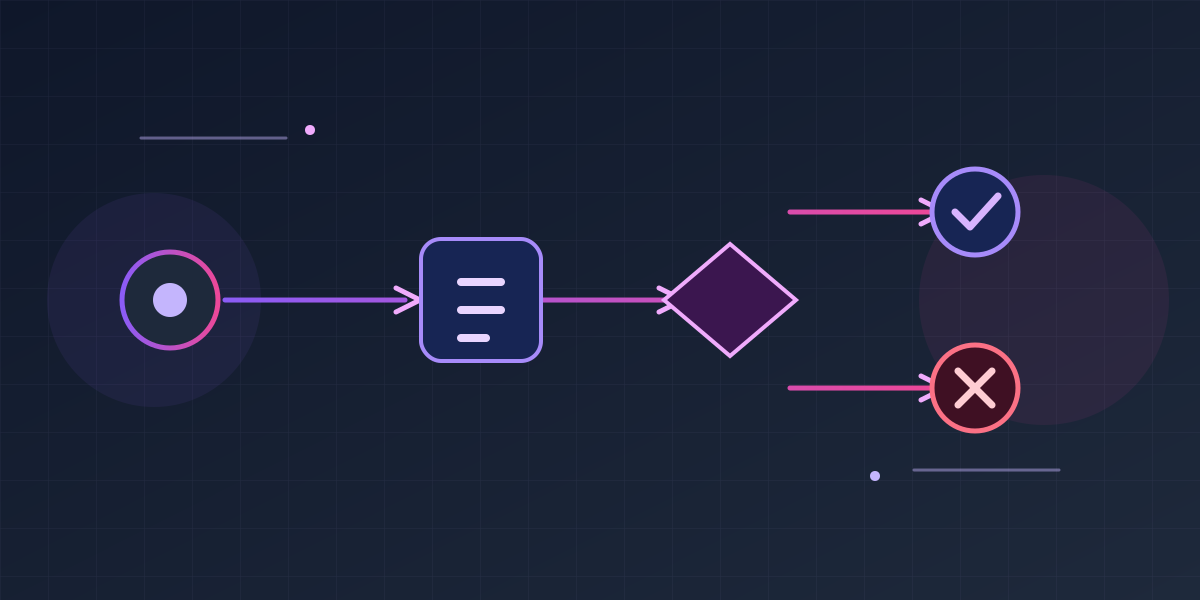
IFS Cloud Workflows (BPA): A Practical Guide to Automation
A practical guide to native IFS Cloud workflows (BPA): where they fit, how to trigger and test them, and how to keep automation supportable.
Published
IFS Cloud workflows use the native Business Process Automation (BPA) capability to model a bounded piece of process logic with BPMN. They are a useful part of the configuration toolbox: a workflow can react to an IFS projection operation, a custom event, or a workflow command; collect a small amount of user input; make a decision; call a published IFS API; and either finish or stop the originating transaction with a controlled message.
That is powerful, but it is not a reason to rebuild every business process as a diagram. Native BPA is strongest when IFS already owns the business data and transaction, and the missing behaviour is a short, governed rule or enrichment around it. Standard IFS authorisation, lifecycle control and business APIs remain authoritative. A workflow should make those capabilities easier to use, not become a parallel ERP hidden in a canvas.
This guide uses the IFS Cloud 25R2 BPA documentation and terminology. It explains the operating model, the implementation lifecycle and the awkward bits that determine whether a workflow is maintainable. The worked example is deliberately an approval guard, rather than a fictional replacement approval engine: it prepares and protects a purchase requisition before it enters the organisation's normal IFS authorisation route.
In brief: use IFS Cloud BPA for a small validation, data capture step or API-backed enrichment at an existing IFS transaction. Keep standard authorisation in IFS, use published projection contracts, and design synchronous failure/rollback and asynchronous recovery before deployment.
Where IFS Cloud workflows fit
Start by deciding which IFS mechanism owns the requirement. This decision is more valuable than choosing a BPMN symbol.
| Need | Start with | Why |
|---|---|---|
| An amount limit, authoriser hierarchy, separation-of-duties rule or approval history that IFS already supports | Standard IFS authorisation and approval setup | The application remains the record of who may approve, who did approve and why. |
| A small validation, guided data capture, calculation, lookup or published-API call around an IFS action | Native BPA workflow | It is close to the IFS transaction and uses the supported projection/event framework. |
| A configurable reaction to a database or application event, with no visual process required | Custom event and event action | It is simpler to operate when the requirement is simply “when this occurs, do this”. A Workflow event action is the bridge when BPA adds real value. |
| A rule that must be atomic inside server business logic and cannot be expressed by standard/configuration/workflow facilities | A reviewed customer customisation | Treat this as a source-delivery decision with upgrade cost, not a shortcut to direct database changes. |
| Cross-system approvals, Microsoft 365 collaboration, long-running orchestration, document signing, mobile/offline work or a specialist UI | An external orchestration/product integration | Use published IFS APIs and retain the IFS business action as the authoritative write boundary. |
For the last category, Power Automate is often appropriate for Microsoft-centred collaboration, while Novacura Flow can be a good operational mobile/process layer. Application events and webhooks are a useful integration trigger. None of those products should silently replace an IFS authorisation decision with an email click or a flow-run status.
The same principle applies to source work. A workflow can call a customer projection action when a genuinely customer-owned operation is needed, but it must not read or update IFS _TAB tables, invoke private PL/SQL, or fabricate an endpoint because the desired operation is inconvenient. Find the operation in API Explorer, understand its authorisation and state rules, then call that published contract.
How IFS Cloud BPA workflows work
In the 25R2 documentation, BPA is integrated with the IFS OData/projection provider and the event framework, with Camunda providing the workflow engine. A workflow definition has a Process Key and one or more versions. The diagram is BPMN; IFS adds task and failure-event extensions for IFS-specific work.
There are three documented ways to start a workflow:
- Projection Action Configuration links the workflow to a projection.
DATAreactions cover configured CRUD activity on an entity set;CALLreactions cover a selected projection action or function. - Event Action Configuration links a Custom Event to an event action of type Workflow.
- Workflow Commands launch a workflow from a configured client command.
The trigger is part of the design, not just plumbing. It supplies the transaction context, determines when the process runs, and defines whether a workflow error can stop the business action.
Workflow types and timings
IFS documents three workflow types:
| Type | Use it for | Important boundary |
|---|---|---|
| Validation | Preventing an action when a rule is not met, using an IFS Failure Event with a localised message. | It is a business guard, not a generic notification mechanism. |
| Process Enrichment | Reading, creating, updating or otherwise invoking supported IFS projection operations as part of a process. | Keep side effects small, explicit and idempotent where an asynchronous path is involved. |
| User Interaction | Displaying one or more IFS Cloud Web forms to the person who invoked the flow, then using the entered values later in the diagram. | It is not a substitute for a delegated approval inbox or a purchase-authorisation matrix. |
For a projection action, Before runs before the principal projection action, After runs after it in the same transaction, and Asynchronous records the work and executes it later in a separate transaction. Validation and Process Enrichment can use the timings the selected configuration allows. User Interaction is an After projection-action pattern; user forms may also be launched by a Workflow Custom Command. Do not put a user form in an asynchronous cascade: the documented result is an incomplete background workflow.
An After workflow is not automatically harmless. For synchronous Before and After flows, an exception in the workflow rolls back the transaction. The same is true if a cascading synchronous workflow fails. Conversely, asynchronous work has a separate transaction and needs a deliberate recovery design.
BPMN primitives you will actually use
The Workflow Designer offers normal BPMN flow elements plus IFS extensions. Prefer the smallest diagram that names the business decision clearly.
| Element | Practical use | Production rule |
|---|---|---|
| Start and end events | Make entry and successful completion obvious. | Every path needs a deliberate end. |
| Exclusive gateway | Split on a Boolean condition, such as “exception required?”. | Label every outgoing condition and make the default route visible. |
| User Task / IFS user form | Ask the invoking user for a short, well-defined value. | Form Field IDs have no spaces. Use camelCase or underscores and keep values under the documented user-task size limits. |
| IFS API task | Call a projection operation selected from API Explorer. | Map only the values the operation requires; never use it to imitate table DML. |
| Script task | A small deterministic transformation, such as normalising a value before a gateway. | Do not turn scripts into an unreviewed application layer. |
| IFS REST Call task | A bounded call to an approved external service. | Use a named configuration, least privilege, timeout/error ownership and idempotency. |
| IFS Failure Event | End a validation path with a user-facing, localised error. | Use it only for a rule that should stop the transaction. |
The expression fields use the expression language documented by IFS (JUEL). The documentation also describes JavaScript/Camunda expression use at gateways and JavaScript in script tasks. In practice, use the syntax offered by the selected designer field and test it in the target release; do not paste a random expression from a different BPMN engine. Keep expressions readable enough that a functional owner can review the rule.
How to build an IFS Cloud workflow
1. Define the transaction contract first
Before opening Workflow Manager, write a one-page contract:
- Business objective: what decision or enrichment is missing?
- Authoritative owner: standard IFS process, workflow, customer projection or external system?
- Trigger: exact projection/entity set/operation, custom event or command.
- Inputs: each field, type, source and whether it is optional.
- Outputs and side effects: every projection call, created record, notification or state change.
- Failure behaviour: block, show a message, log/alert, or recover asynchronously.
- Security: who may configure, execute, approve, correct data and inspect diagnostics?
- Operations: test data, success measures, monitoring page, support owner and safe recovery action.
Use API Explorer to discover the exact projection, entity set, action/function and input/output names. An entity service that is useful for data access is not necessarily selectable as a projection reaction, and a friendly page caption is not an API contract. Record the metadata you found in the change request.
2. Arrange access without giving everyone administration
The 25R2 documentation lists BPA permissions including FND_BPA_AUTHOR_FNDWF and FND_BPA_ADMIN_FNDWF, alongside end-user workflow grants. Map them to distinct delivery roles:
| Role | Needs | Should not casually have |
|---|---|---|
| Workflow author | Create/edit non-production definitions, troubleshoot, view only necessary API metadata | Production deployment or broad business-data access |
| Workflow administrator | Lock/unlock, deploy/undeploy, transport and resolve ownership | Authority to approve the business transaction merely because they administer BPMN |
| End user | The page/command and business projection grants needed to perform the normal process | Authoring, inspection or workflow administration |
| Support analyst | Workflow Status, trace/log access and agreed corrective actions | Permission to replay business transactions blindly |
The workflow engine does not bypass projection security. Every called operation must be authorised in the runtime context that actually invokes it. Test the happy path and a denied-permission path with representative roles.
3. Create a definition and an editable version
In Solution Manager → Workflow Manager → Workflow, create a definition with a concise, stable Process Key, such as SC_PR_POLICY_EXCEPTION_GUARD. The documentation limits the key to fewer than 200 characters; that is not an invitation to put a sentence, ticket number or environment name in it.
Use a version label that makes change control legible, for example 1.0.0, 1.1.0 or an agreed release identifier. You can also upload a .bpmn file or clone an existing version, but inspect the result in the designer before treating it as deployable. BPMN is portable notation, not a guarantee that another engine's extension attributes mean the same thing in IFS.
An undeployed version is open/editable. A deployed version becomes Active and permanently locked; changes are made by saving a new version, not by editing the live diagram. One definition has one active deployment at a time. Previous deployments can remain inactive, which is valuable evidence during an incident and a controlled route back to a known version.
4. Model data deliberately
Give task variables unambiguous business names and map them at the boundary. For example:
| Variable | Type | Source | Use |
|---|---|---|---|
requisitionNo | Text | Trigger/action key | Correlation and API read key |
company | Text | Trigger context | Scope/checks |
requiresPolicyException | Boolean | Header attribute or API read | Gateway condition |
policyExceptionRef | Text | Header attribute | Evidence that the prerequisite was recorded |
validationMessageLocale | Text | Workflow failure configuration | Localised error path |
Do not infer the API name from this table. In the configured workflow, select the exact fields/parameters that API Explorer exposes for the release and projection you are using. Keep the amount/currency calculation in the owning IFS process where possible; a visual workflow is a poor second ledger.
5. Add a trigger and map its type/timing
For a projection-triggered workflow, first deploy the candidate, then use the Projection Action Configuration wizard to select the projection, DATA or CALL, entity set or call, workflow type and timing. Enable the configuration only after the mapping and error path have been reviewed.
For an event-triggered workflow, create the Custom Event with only the required parameters, then add an event action of type Workflow, referencing the deployed workflow key, type and timing. Use a custom event when the business event is the stable hook; use a projection action when the user/API operation itself is the correct boundary. A mobile-app transaction triggered by a custom event has the documented asynchronous constraint.
Use a workflow command when the user should explicitly choose a guided action. It is the right place for a form that collects supplemental information. It is not a way to hide a mandatory approval decision outside the normal authorisation process.
6. Validate before deployment, then test a released definition
The Designer's Validate BPMN Diagram catches diagram-level problems, while Inspect BPMN Diagram lets you execute a workflow with supplied inputs and see the path/variables before deployment. It can save/load inspection data locally. This is valuable, but it is not integration evidence: inspection does not prove that the production event parameters, user grants or projection state are correct.
Deploying sends the BPMN definition to the workflow engine. A deployment alone does nothing useful; the active version must also have the intended enabled projection action, event action or command. Record the Process Key, version, deployment name, trigger configuration and test evidence together.
Example: validate a purchase requisition before authorisation
Requirement and design choice
A manufacturer buys some regulated or non-standard goods. The business rule is:
A purchase requisition that is marked as requiring a policy exception must have a policy-exception reference before it can be sent into the normal IFS purchase-requisition authorisation process. The usual IFS authorisation matrix still decides who approves or rejects it.
This is deliberately not a parallel manager-approval workflow. IFS purchase-requisition authorisation owns approvers, delegation, limits, final decision and audit history. BPA owns a narrow validation at the hand-off point. It stops incomplete requests from entering that route, with a message the requester can act on.
The business team has already configured two customer attributes on the requisition header and verified that the target requisition projection exposes them:
| Attribute/variable | Meaning | Owner |
|---|---|---|
RequiresPolicyException / requiresPolicyException | Boolean flag set by procurement policy | Requisition header configuration |
PolicyExceptionRef / policyExceptionRef | Approved reference or case ID | Requisition header configuration |
The exact projection and Send for Authorisation action vary by installed components and release. Do not copy a guessed service name from this article. In the target environment, discover the page's action in API Explorer, record its action parameters/key fields, and use those exact values.
The BPMN flow
Create a Validation workflow with:
- Process Key:
SC_PR_POLICY_EXCEPTION_GUARD - Version:
1.0.0 - Trigger: Projection Action Configuration,
CALLreaction on the verified “send for authorisation” action - Timing:
Before - Workflow type:
Validation
The diagram is intentionally small:
The API task reads the requisition header using the action context/key discovered for the target projection and maps these fields into the workflow variables:
Set the gateway's “reference required?” route to true when:
Configure the failure end event with a stable error identifier such as SC_PR_EXCEPTION_REF_REQUIRED and supply a localised message for every locale the organisation supports. The English message can be:
Policy Exception Reference is required before this requisition can be sent for authorisation.
Use an IFS Failure Event, not a notification followed by a success end. The purpose is to stop the synchronous action. The success route ends normally so the standard requisition action and its normal authorisation workflow continue unchanged.
Implementation steps
-
Confirm the prerequisite data. Configure the two customer attributes through the approved configuration lifecycle, make the fields visible only to suitable roles, and confirm their API exposure in the target API Explorer. Define who can set
RequiresPolicyExceptionand what constitutes a valid reference. BPA cannot compensate for a poorly governed field. -
Create version
1.0.0. In Workflow Manager, createSC_PR_POLICY_EXCEPTION_GUARD, open the new version in Workflow Designer, and document the objective in the change record. -
Build the definition. Add the start event, IFS API task, gateway, normal end event and IFS Failure Event. Use the task properties to select the real requisition projection/read operation, then map the three values above. Do not type a table/view name into a script.
-
Set the gateway routes. The false route goes to the normal end. The true route goes only to the Failure Event. Label both sequence flows, so a reviewer can see that a missing reference blocks only a flagged requisition.
-
Validate and inspect. Run diagram validation. In the inspector, test the combinations below using the exact variable types—Boolean and numeric inspector values must not be quoted as strings. Confirm that the inspection reaches the red failure path only when expected.
-
Deploy the candidate. Deploy with the recorded deployment name. The version becomes Active/permanently locked, so no one can alter the released logic in place.
-
Configure the projection action. Select the verified requisition projection and its authorisation call, set
CALL,ValidationandBefore, then enable it. Capture the configuration identity in the change record. -
Test in non-production. Execute the real page action and an API-client path with approved test data. A browser-only pass is insufficient: the projection action is the enforcement boundary.
-
Release with normal authorisation testing. Prove that a valid requisition reaches the existing IFS authorisation chain, where the configured approver can approve/reject it. BPA did not create that approval record; the IFS standard process did.
Test cases and expected result
| Case | requiresPolicyException | policyExceptionRef | Expected workflow outcome | Expected IFS outcome |
|---|---|---|---|---|
| Ordinary requisition | false | blank | Normal end | Authorisation action proceeds. |
| Exception requisition, valid reference | true | PE-2027-0042 | Normal end | Authorisation action proceeds. |
| Exception requisition, blank reference | true | blank | IFS Failure Event | User sees the localised error; send-for-authorisation transaction rolls back. |
| Exception requisition, spaces only | true | spaces | Failure Event | Same controlled block, if the configured test/trim rule treats spaces as blank. |
| User without required requisition/projection grant | either | either | Permission error before/during the normal action | No unintended data change and no security bypass. |
| API-client caller | true | blank | Same validation path | No bypass through a non-UI caller of the configured projection action. |
For a later enhancement that helps the requester populate the reference, add a separate User Interaction workflow launched from a visible “Record policy exception reference” workflow command. Its form could collect policyExceptionRef and a short policyExceptionReason, then call the verified projection update operation. Keep it separate from the validation guard. The requester can cancel the form; the guard remains the non-negotiable protection at submission.
User forms have significant transactional constraints. Workflow steps before a UserForm are committed together, the form is its own transaction, and steps after submission continue in another transaction. Forms do not support IFS List of Values; static enumerations can be defined in the form, but IFS-managed enumerations are not currently a substitute. That is why the example uses a simple validation at the authoritative submission point rather than trying to make an in-form approval engine.
Monitoring, failure handling and support
Know what an error means before reacting
For synchronous workflows, an exception rolls back the whole transaction. That is usually correct for a validation, but it also means a failed enrichment can undo the user's primary action. Use a Failure Event for deliberate business rejection and let unexpected technical errors remain diagnosable rather than swallowing them in a script.
For asynchronous workflows, execution occurs in a different transaction. Design every external call and enrichment with a business correlation key, clear ownership and an idempotency strategy. Do not “retry” by asking an operator to repeat a posting, release or approval action until they know whether the first attempt committed. The safe response may be reconciliation, a targeted correction, or an approved re-trigger of an idempotent operation—not a generic replay button.
Avoid putting remote calls, slow loops or unpredictable volume inside a synchronous Before flow. If an external system is essential to the decision, design an explicit integration boundary with timeouts, durable delivery and a business fallback. BPA is not a distributed-transaction coordinator.
Use the tools IFS provides
Workflow Status lobbies expose running process instances, open user tasks, deployment/execution measures and runtime data such as current instances/events/open tasks. Use them in an operational dashboard alongside the business queue they affect.
For request-level diagnosis, enable the IFS Cloud Web DevTools link under profile/settings debug and use the IFS Cloud Web DevTools extension. Workflow traces can identify Process Key, type, timing, projection/event trigger and execution order. The documentation notes a limitation for asynchronous traces: a POSTED prefix shows that work was posted, while details inside the asynchronous execution are not logged in that request trace. Build an operational check for the eventual business outcome as well.
The Designer's inspector is useful before deployment. It has a configurable debug timeout; increasing it simply to make an over-large test pass can create longer-running transactions and resource pressure. Reduce loop cardinality, restrict API fields with $select where supported, and inspect one process segment at a time.
Versioning, transport and change control
Treat BPA definitions and their trigger configurations as a release unit.
- Keep Process Keys stable and use a new version for every deployable change.
- Export a BPMN file for review/audit if that fits the team's repository practice, but use the IFS lifecycle for the installed configuration.
- Add the workflow to an Application Configuration Package (ACP). IFS includes associated projection actions, event actions and linked custom events when the workflow is added.
- Export the active version where one exists; otherwise export the latest modified version, as the IFS documentation advises.
- Import into the next environment, review all reference/configuration results, then execute the regression pack before enabling dependent business rollout.
There are two particularly important transport details. An Active workflow imported through an ACP is automatically deployed in the target environment. Also, an IFS REST Task configuration transport carries its name, description and type but not its authentication details: configure those secrets separately in the target environment through the approved secret/configuration process.
Do not rely solely on an ACP validation summary. The IFS documentation records a case where a workflow deployment can fail during installer import while its enabled projection configuration remains installed, producing runtime errors when that projection action occurs. Include a post-import check that the intended version is Active and that every enabled trigger references a deployable definition.
For an upgrade, retest the real contracts: projection/action metadata, event parameters, user permissions, workflow deployment, synchronous rollback, asynchronous recovery and changed standard business behaviour. Do not assume an old diagram remains correct because it still imports. Keep a small regression suite like the worked example's table and run it against the release candidate as part of IFS Cloud release management.
IFS Cloud workflow production checklist
- Standard IFS configuration/authorisation was assessed before BPA.
- The exact target projection, entity set, call and field names were discovered in API Explorer.
- The workflow has a stable Process Key, version, owner and documented business purpose.
- Every gateway has named routes, a defined default and an explicit failure/success end.
- Called operations use supported projection contracts, not tables or private APIs.
- User-form use is deliberate, with no asynchronous cascade, no assumed LOV support and understood transaction boundaries.
- Workflow author/admin/end-user permissions are separated and runtime API grants have been tested.
- BPMN validation and inspection passed before deployment.
- Real non-production tests cover successful, rejected, unauthorised, UI and API-client paths.
- Status, trace/log access, support ownership, correlation/recovery and the release rollback decision are documented.
- The workflow and trigger configurations are in an ACP, with post-import Active/enabled checks.
- The regression pack is ready for the next IFS Cloud update.
Further reading
Need to automate an IFS Cloud process without creating upgrade debt?
Syrett Consultancy can help you choose the right IFS Cloud mechanism, design a supportable workflow, and test its release path.